
Installation — SorterOS image
Install the SorterOS image
InstallationFlash an SD card, power on the Orange Pi, and put it on your WiFi from your phone. The Pi sets up the rest.
Parts needed
Computer
- 1×
Tools needed
- A computer with a microSD card reader
- Balena Etcher
- A phone, or an Ethernet cable to your router
The SorterOS image runs on the Orange Pi 5 with 8 GB of memory or more.
What you need
The Orange Pi 5 already in the machine, with 8 GB of memory or more, and the card and tools above. You also need your WiFi's password, unless the machine is on a cable.
Buy the card from a name brand, like Samsung. The Pi writes to it all day and cheap cards corrupt.
On Windows, open Balena Etcher with right-click, Run as administrator. Otherwise the flash can fail with "Error starting flasher sidecar process".
1. Download
Download the .zip from the newest SorterOS release, the top one in this list on GitHub.
2. Flash
In Balena Etcher: Flash from file, pick the .zip, Select target, pick the SD card, Flash. Wait until Etcher says the flash is complete.
3. Power on
Put the card in the Orange Pi and power it on. Power goes in at the USB-C socket marked PWR IN.
On Ethernet to your router? The Pi goes online by itself. Skip to step 5.
4. Put it on your WiFi from your phone
About half a minute after power on, the Pi starts its own WiFi network, SorterOS-Setup- and six characters. For up to a minute after it appears, your phone may say it's unable to join. Wait and try again.
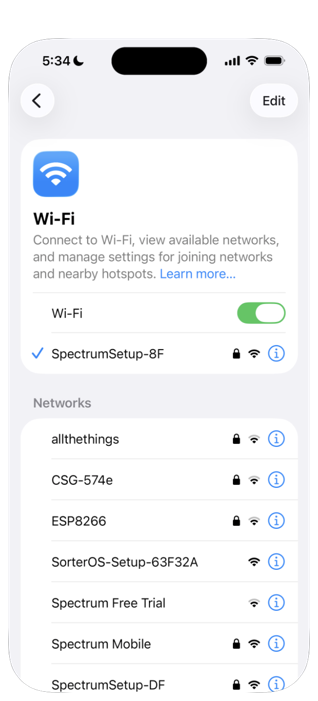
SorterOS-Setup network. Screenshot recorded on an iPhone.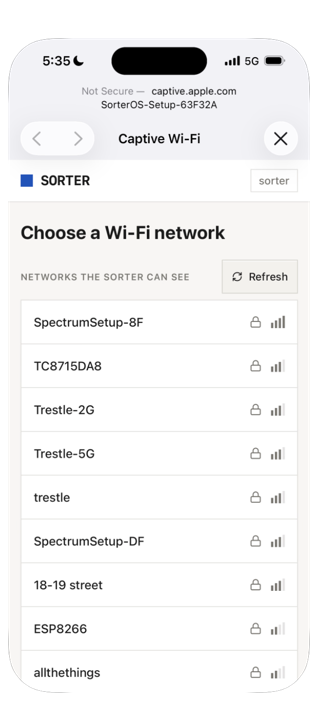
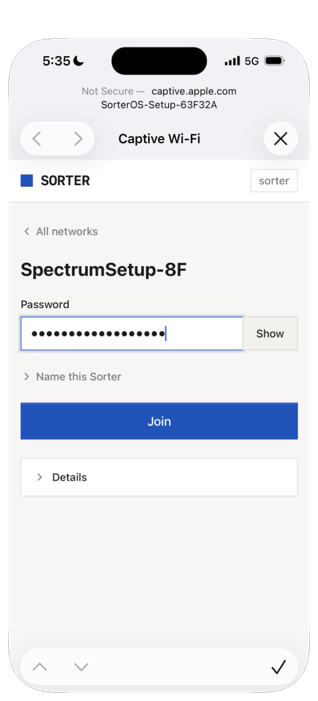
No setup page? Stay on the SorterOS-Setup network and open http://10.42.0.1 in Safari or Chrome.
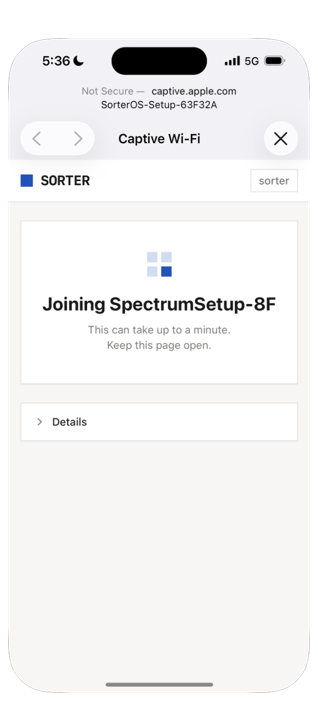
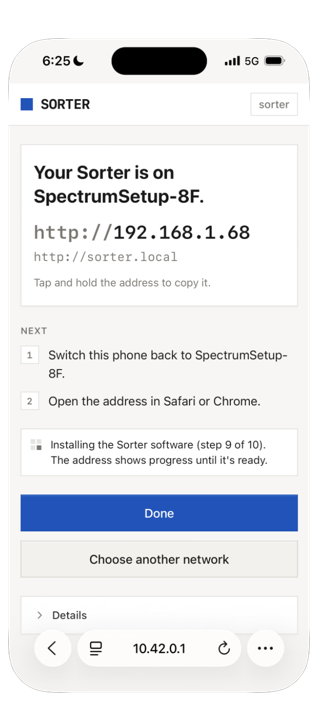
5. Open the installation progress
On a phone or computer on the same WiFi, open http://sorter.local. It shows the Pi installing SorterOS, which takes a few minutes.
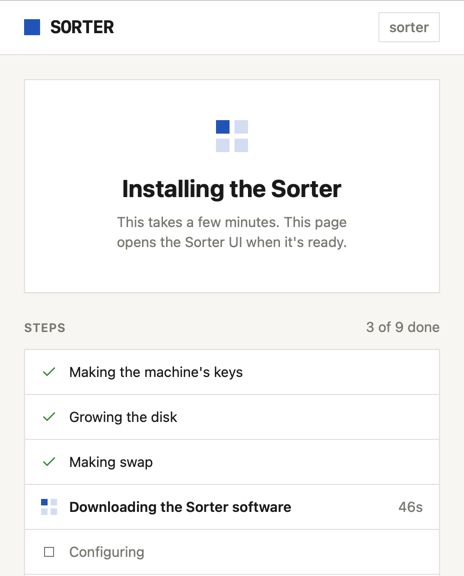
When it's ready, the page opens the SorterOS UI by itself.
6. If you fitted the WiFi module
Nothing needs installing for the module itself: the driver is in the official Orange Pi Ubuntu image that SorterOS is built on, so a SorterOS machine picks it up on its own. Third-party OS images may not have the driver at all.
Once the UI is up, the adapter shows under Settings → WiFi, which is where the network and password go in. Over SSH, nmcli device wifi list lists what it can see.
Take the adapter's address before you unplug the Ethernet. Joining a network gets the machine a second address, different from the one it has been answering on, and once connected the adapter's row on that same WiFi page shows what it is. Write it down, then pull the Ethernet and browse to it. Doing it the other way round leaves you hunting for the machine, because the page you were reading goes with the cable.
7. Shut it down before you unplug it
Never cut the power to a running board. It writes files continuously, and pulling the plug mid-write can corrupt the card you just flashed.
Press the small black button on the side of the Orange Pi once and leave it alone. Shutdown takes about a minute and a half, and it has finished when the red and green LEDs stop blinking. Only then unplug it. The button is a shutdown button, not a power switch: the board starts again the moment it has power, with no press needed.
Shutting down the machine covers the same from the UI.
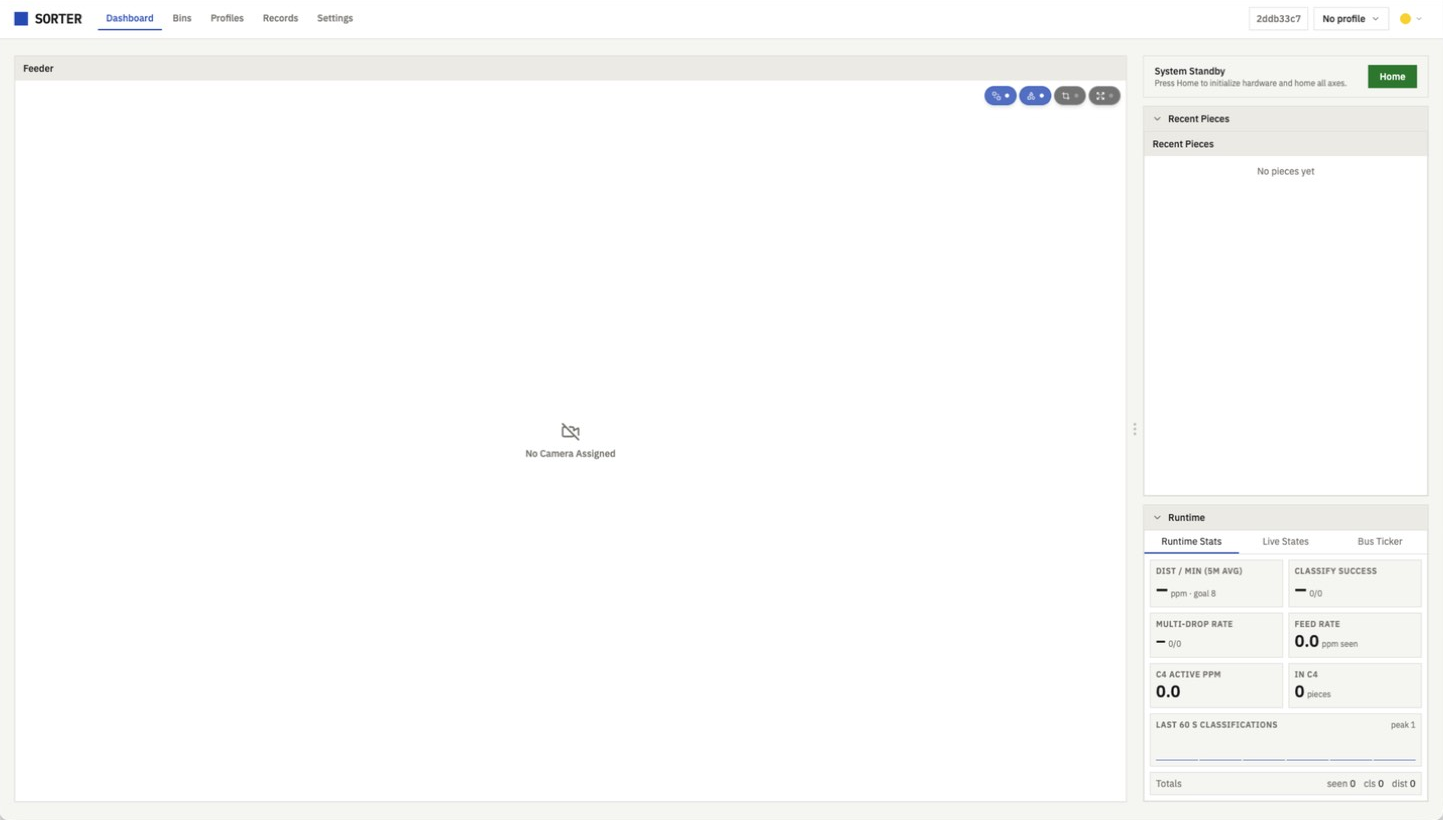
The finished result
The SorterOS UI open in a browser, with nothing set up on the machine yet.
Next
Flash the control board before you open the setup wizard. The wizard only lists boards that already answer on USB serial, so a board with no firmware on it does not appear and the wizard says No MCU buses found. Software setup step 2 has the route.
Then set the machine up with the setup wizard: in the SorterOS UI, Settings, then Open Setup Wizard. First setup in the UI goes through it.
Debugging
- No
SorterOS-Setupnetwork. It only appears while the Pi is offline. On a cable with internet, the Pi is already online: go to step 5. - The setup page didn't open. Open http://10.42.0.1 in Safari or Chrome while on the setup network.
- Your phone left the setup network during the join (it can on a WiFi that's only 5 GHz). Join it again to see the result.
sorter.localdoesn't open. Use the address the setup page showed. Older Windows needs Bonjour, and Android usually can't open.localnames. A second machine running the SorterOS image issorter-2.local.- Office or school WiFi that asks for a username as well as a password can't be set up this way. Use Ethernet.
More in troubleshooting.
Or: put your WiFi in before you flash
SorterOS Setup writes your WiFi into the image, and optionally a hostname, an SSH key and a Tailscale key. It runs in your browser and uploads nothing. Unzip the download, open the .img there, and flash the .img it saves instead of the .zip.
Later
- New router or WiFi password. When the Pi can't reach the internet for about a minute, its setup network comes back. Do step 4 again.
- Updates. Settings, then Versions, in the SorterOS UI. You only need a new SorterOS image when the image itself changes.
- SSH. User
root, passwordorangepi.