SorterOS — Under the hood
What leaves the machine
ReferenceEvery network connection the backend can make, what each one carries, and which ones you can turn off.
The machine sorts fully offline except for piece recognition. Everything below is the complete list of outbound connections the backend can make — there is no other background traffic. Two connections happen without any setup on your part (piece recognition and the status ping); the rest only run once you configure them.
What the cameras see, and what is cut out of it
Each channel has a camera, and the machine looks at its whole picture. A detection model running on the machine finds the pieces inside the zones you marked and cuts a small crop around each one. Those crops, not the full camera pictures, are what the machine works with when it identifies a piece.
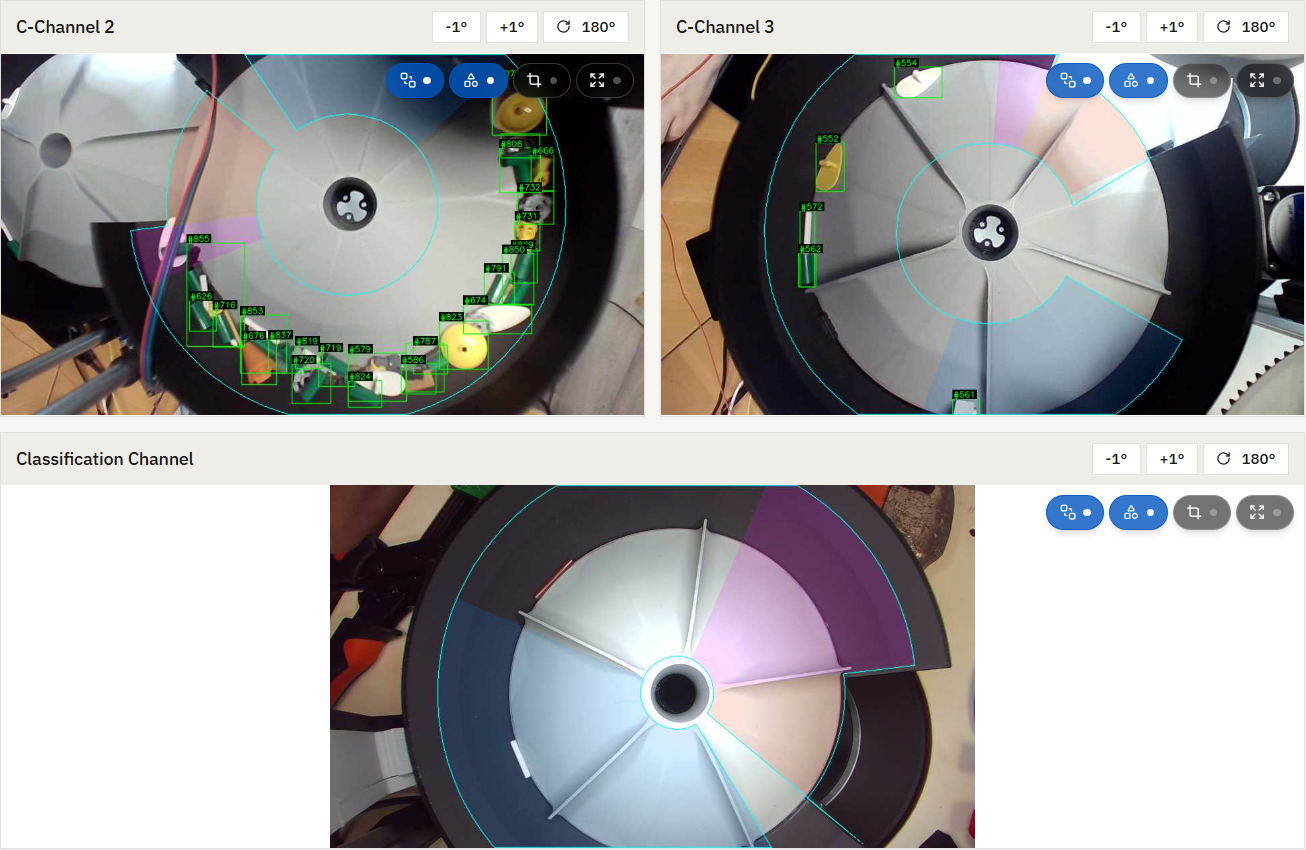
The full camera pictures do not leave the machine by default. Only the crops of pieces are sent to Brickognize, below. Full frames are uploaded only if you connect a Hive and leave Full camera frames on in Settings > Data (it is on until you turn it off). The hosted color model also stores the crops it receives, and with your own OpenRouter key and sample collection on, whole frames go to OpenRouter to be labelled. All three are covered further down.
Brickognize — piece recognition (required)
During sorting, cropped photos of each piece are sent to
api.brickognize.com to identify the part and color. This is the core
recognizer and there is currently no way to sort without it — no off switch.
The request carries the image and nothing else — no account, no machine
identifier.
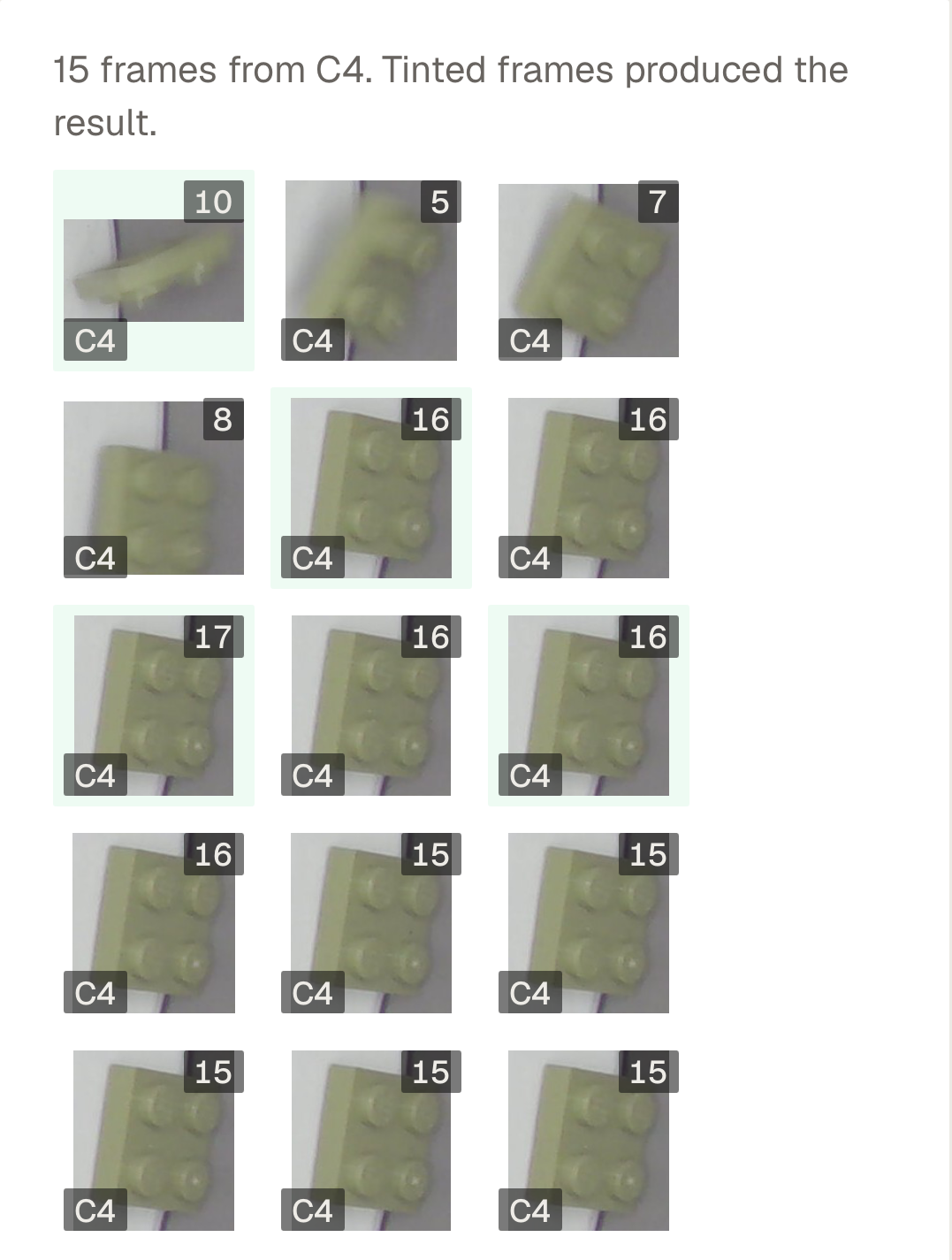
Open a piece from Records to see which crops were sent: the tinted tiles in its picture list produced the result.
Status ping — on by default
Once an hour (and shortly after the backend starts), the machine sends a small
status report to hive.basically.website so we know how many machines exist,
whether they're online, what software they run, and roughly how much they sort.
It runs whether or not you've connected a Hive account.
To send it, the machine silently enrolls a device identity with
hive.basically.website the first time: a random key generated on the machine,
exchanged for a token. This is not an account and creates none — it only lets
the server keep one record per machine instead of trusting self-reported ids.
The report also carries a random install ID generated on the machine — that
ID is your handle for viewing and deleting the data (below). Neither is derived
from the machine's network details. We can tell one machine apart from another
and see the IP it connected from (which gives an approximate country/region,
the same as any web request).
If you've registered a Hive account, the ping additionally includes your account machine IDs — the same IDs you already gave Hive when you registered — so we can link this install to your account(s). This only happens once you've voluntarily created an account and registered the machine; an unregistered machine stays fully anonymous. Account tokens are never sent.
This is the complete payload — nothing else is collected:
| Field | Example | What it is |
|---|---|---|
install_id | a1b2… random UUID | Anonymous per-install ID. Not your account. |
created_at | 2026-07-13 | When this install first generated its ID (its "birthday"). |
reason | boot / periodic | Whether this was a startup ping or the hourly one. |
software.version | sorter/canary/v0.1.0-29-g… | Software version + release channel + commit. |
os | Debian … / SorterOS 1.x | OS name and SorterOS image version, if present. |
hardware | Orange Pi 5, 8 GB, 47 °C, disk free | Board model, RAM, CPU temperature, disk space. |
config | classification_channel / pulse_perception_rev01 / two_piece_… | Which machine setup and feeder / classification modes are running. |
usage | pieces seen/classified/distributed, hours powered/sorted, best rate | Cumulative counters — "how much it sorts." |
uptime | process + system seconds | How long the software and the machine have been up. |
registered | true / false | Whether a Hive account is configured. |
machine_id, accounts | UUIDs | Only if registered: your local machine ID and each account's machine ID, to link this install to your account(s). Never tokens. Absent on unregistered machines. |
What is not in it: no images, no per-piece records, no part numbers, no account tokens, no serial numbers, MAC addresses, hostnames, or WiFi details. Only what's in the table above.
Turning it off: set SORTER_BASE_REPORTING_OFF=1 in the machine environment
and restart the backend. The report thread then never starts.
Seeing exactly what your machine sends: open /telemetry on the machine's
web UI (a hidden page — type the path). It shows your install ID, whether the
ping is on or off, and the exact JSON that would be sent.
Deleting it: copy your install ID from /telemetry and paste it into
hive.basically.website/forget. That
erases all status-report data tied to that ID. (Turning the ping off stops
future pings but doesn't delete what was already sent — use the form for that.)
We also age old records out on our side over time; the form is there if you
want it gone now.
basically color model — off until you select it
In Settings → Tuning → Classification Providers you can switch color
prediction from Brickognize to the hosted color model at
hive.basically.website. With it selected, the same cropped piece photos that
go to Brickognize are also sent there (under the device identity above), and
are stored on our side along with the prediction — that's what trains the
next revision of the color model. Nothing else is sent: crops, camera channel
numbers, and the piece's internal id. Switch the provider back to Brickognize
and this traffic stops entirely.
Hive — optional, off until you connect it
The machine makes no connection to Hive unless you connect one in Settings > Hive. Remove it and all of the below stops. Before anything is shared, the machine asks you to agree to what it shares: in the setup's "What this sorter shares" step, or when you first connect a Hive from Settings. Until then only the keep-alive below goes.
With a Hive connected:
Heartbeat — every 30 seconds, a keep-alive so the UI can show whether the server is reachable. The server records when your machine was last seen and the IP it connected from. While Network addresses is shared, each heartbeat also carries where to find the machine on your networks.
Part dimension lookups — when a piece is classified, the machine asks Hive for that part's physical dimensions to route oversize pieces to the bottom bin. This is a download; the only thing sent is the part number.
What is shared — Settings > Data lists every kind of data the machine can share, with what each one carries. You choose for every Hive at once, and can choose differently for one Hive; "Reset to defaults" puts the defaults back. A kind that is off is never sent, including uploads already waiting.
| Kind | Default | What it carries |
|---|---|---|
| Machine telemetry | always | How the machine is set up and how it runs: its platform, operating system, software version, cameras and controller boards; each motor's driver settings (current, microstepping, chopper mode, StallGuard threshold and speed floor); summaries of each motor's load while sorting (StallGuard readings binned by speed, the driver's current scale and warning flags), each camera's exposure, gain and white balance as the camera chose them and its frame rate, and stalls with the readings just before them. Summarised an hour of sorting at a time (a few KB). No pictures, nothing about what you sort, and no hostname, MAC address or serial number. Required while a Hive is connected: it is how problems and better defaults are found across every machine. |
| Piece records | on | Classification results per piece (part, color, confidence, bin, timestamps), every part and color prediction the recognizers returned with its score, your corrections, sorting runs and set sorting progress. |
| Piece pictures | on | The cropped pictures each piece was classified from. |
| Full camera frames | on | Training samples: whole frames from each camera while sorting, with the camera's settings, the lamp's brightness and the channel outline at the time. |
| Channel crops | on | Small crops of pieces on C2 and C3 with where they were, used to follow a piece from channel to channel. Many a minute. |
| Feeder logs | on | Compressed logs of where the vision model saw pieces and every motor command while sorting, with the settings at the time. No pictures. |
| Network addresses | on | Where to find the machine: its hostname and .local name, the ports of its UI and API, and each network it is on (the Wi-Fi name, Ethernet or Tailscale) with its address there and whether that network reaches the internet. On SorterOS, also the name of its setup network while it broadcasts one. Shown on the machine's Hive page, to you and to Hive admins only. Turning it off makes the next heartbeat tell Hive to forget the addresses it has. |
Upload statistics — Settings > Data > Uploads shows, per Hive and hour, how much of each kind was uploaded, what is waiting, what will never be uploaded (old training samples skipped to keep up, files deleted on the machine before they went) and how long the Hive's upload budget held uploads back. Settings > Data shows what the machine keeps on its own disk.
sharing.py in the backend is the one list of what can be shared, and
hive_uploads.py the one place that sends it: no other code path can upload to
Hive, and adding a kind of upload means adding it to that list.
Firmware update check — GitHub
Opening the firmware page fetches the release list from api.github.com to
show available firmware versions. Anonymous, standard GitHub API call. Only
happens when you use that page.
BrickLink and OpenRouter — only with your own keys
If you configure your own BrickLink store credentials, the machine calls BrickLink for store inventory.
With your own OpenRouter API key, the machine sends whole camera frames to OpenRouter (a Gemini model) to draw boxes around the pieces in training samples. This only happens while sample collection is on, and it finds pieces only: it does not identify parts and is not used for sorting. Without a key, these paths never run.