
First profile — Read what it proposes
Read what it proposes
TutorialRules are tried top to bottom and the first match wins, so the order of the boxes is most of what a profile does. What the conditions mean, and a worked example of four boxes in the right order.
AI-generated first draft. Written from Hive's own source and from one owner's first session with the chat, not from clicking through the flow start to finish. Correct it as you use it.
When the assistant answers, it changes the rules on the left. Two things are worth checking every time.
Order matters. Rules are tried top to bottom and the first one that matches wins. A part that could go in two boxes goes in the higher one. If everything is landing in one box, that box is probably too high in the list and too broad.
The catch-all is doing the work you cannot see. Anything that matches no rule goes to your default box. If that box is enormous, your rules are narrower than you think.
Click a rule to see which parts it matches. That list is what your profile actually does.
Conditions, Match ALL, and Add child
Open a rule and you see its conditions: a field, an operator, and a value. Add condition adds another line to the same rule.
The dropdown next to the rule name decides how those lines combine. Match ALL means every condition has to be true, which is "and". Match ANY means one is enough, which is "or". A rule with two conditions on Match ALL catches only parts that satisfy both.
Add child adds a group inside the rule. A child is not a separate box. It is worked out on its own, and its answer then counts as one more true or false alongside the rule's own conditions. That is how you mix and with or.
An example: a rule on Match ALL with one condition, category_id = Tile. Inside it, a child on Match ANY holds color_id = 4 and color_id = 1. The rule catches tiles that are red or blue, and they all go in the rule's own box.
The operators, as the editor shows them:
=is exactly this value, and!=is anything except this value.inis any one of a list of values.containslooks for text inside a name, andregexis a pattern for the same job.>=and<=compare numbers, for fields like a year or a weight.
Which operators you get depends on the field you picked. A name can be searched with contains, not compared with >=.
An example: four boxes in the right order
A profile with four boxes, in the order the machine tries them:
- Minifigure over 5, minifigure parts worth five dollars or more.
- Minifigure, every other minifigure part.
- Black, anything black.
- Red, Dark Red, anything in either red.
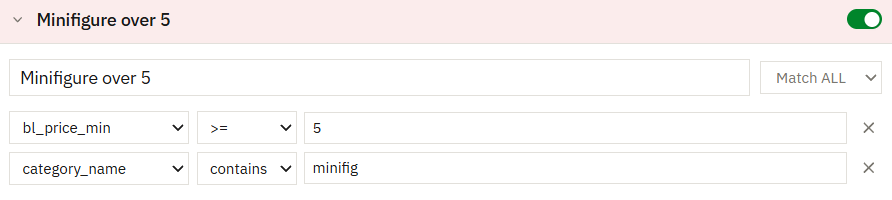
5, with no dollar sign. Screenshot courtesy of BrickCycleAlice.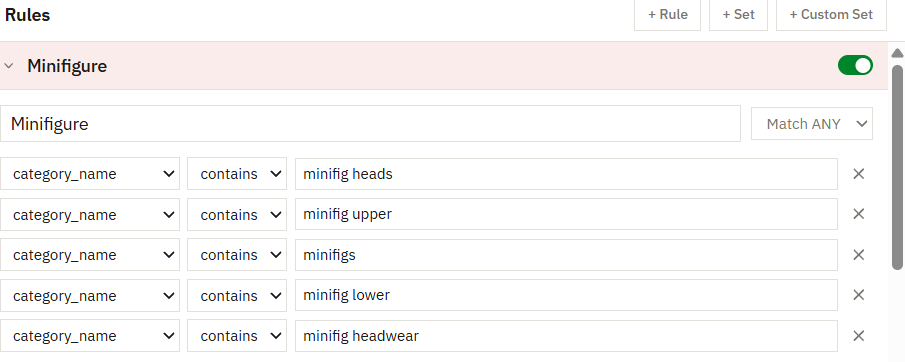
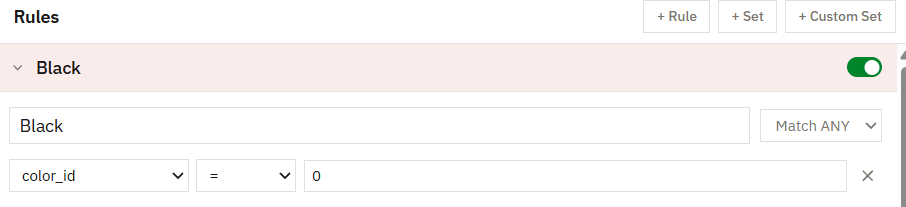
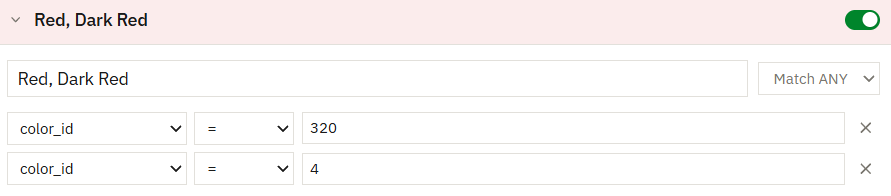
Put the minifigure boxes above the colour boxes. Black hair and black legs are minifigure parts and they are also black, so whichever rule is higher takes them. In this order they go in with the rest of the minifigure parts. Put Black on top instead and the black box takes them, and your minifigure box comes out with no black in it.
Put Minifigure over 5 above plain Minifigure if you want the valuable parts separated. A five dollar hairpiece is an ordinary minifigure part as well, and the plain box takes it the moment it is the higher of the two.
A colour box only takes the colours it names. Everything it does not claim carries on down the list, so a black box near the bottom does not empty the boxes under it. It takes their black and leaves the rest.
To change the order, hover over a rule in the list and use the up and down arrows on its row.
Type numbers on their own. The value in the Minifigure over 5 rule is 5, not $5. A currency symbol or a unit in a number field makes the save fail with Internal server error, and nothing says which rule it was.
Next: send it to your machine.
Back to Build your first sorting profile.